A smart air purifier is defined as a Wi-Fi enabled or protocol-connected device that integrates with platforms like Samsung SmartThings, Google Home, or Home Assistant to deliver remote control, automated scheduling, and real-time air quality monitoring. Connecting an air purifier to your smart home system transforms a passive appliance into a responsive part of your home’s health infrastructure. For homeowners in Riyadh, Jeddah, and Dammam, where desert dust and seasonal humidity regularly push indoor PM2.5 levels higher, that responsiveness is not a luxury. It is the difference between reacting to poor air and preventing it.
How to connect your air purifier to your smart home system
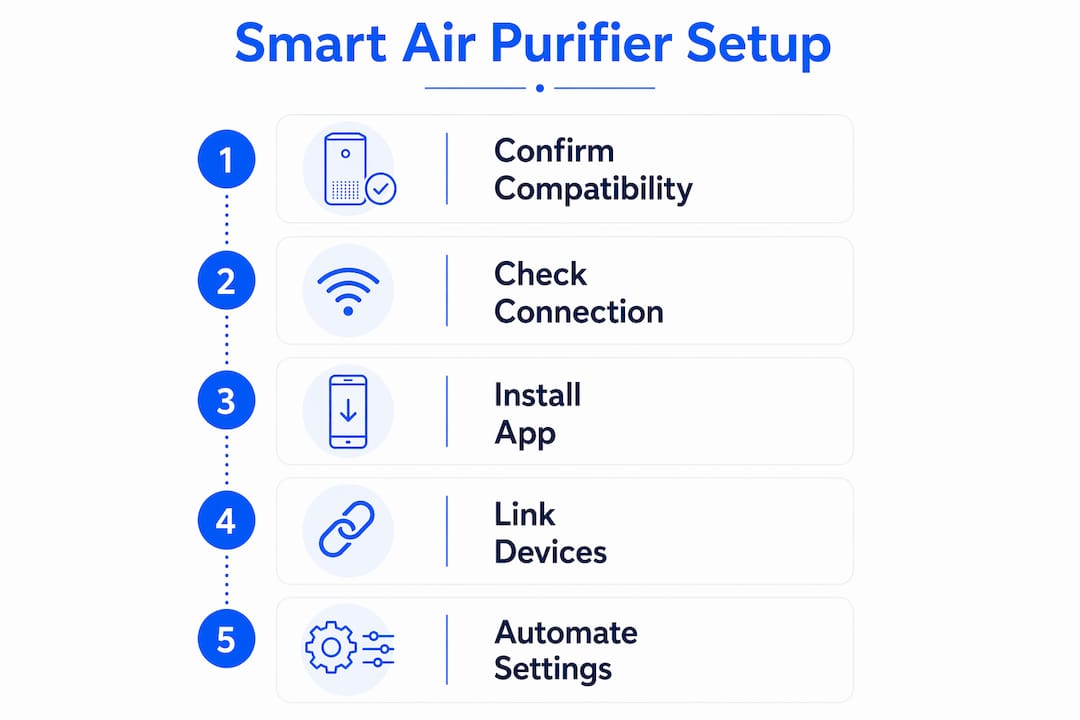
Before you touch a single setting, you need to confirm three things: your purifier supports remote connectivity, your home network meets the platform’s requirements, and you have the correct app and account ready. Skipping this step is the most common reason setups fail.
Wi-Fi is the most common connectivity method for smart purifiers, offering direct cloud connection without a hub. It is the simplest option for most households, though it does consume more power than alternatives and carries security considerations if your network is not properly secured. Zigbee and Z-Wave require a compatible hub but offer lower power consumption and stronger mesh reliability. The Matter protocol is an emerging unified standard that works across Apple HomeKit, Google Home, Amazon Alexa, and others, using Wi-Fi and Thread networks to reduce vendor lock-in. If you are buying a new purifier today, Matter compatibility is worth prioritising for long-term flexibility.
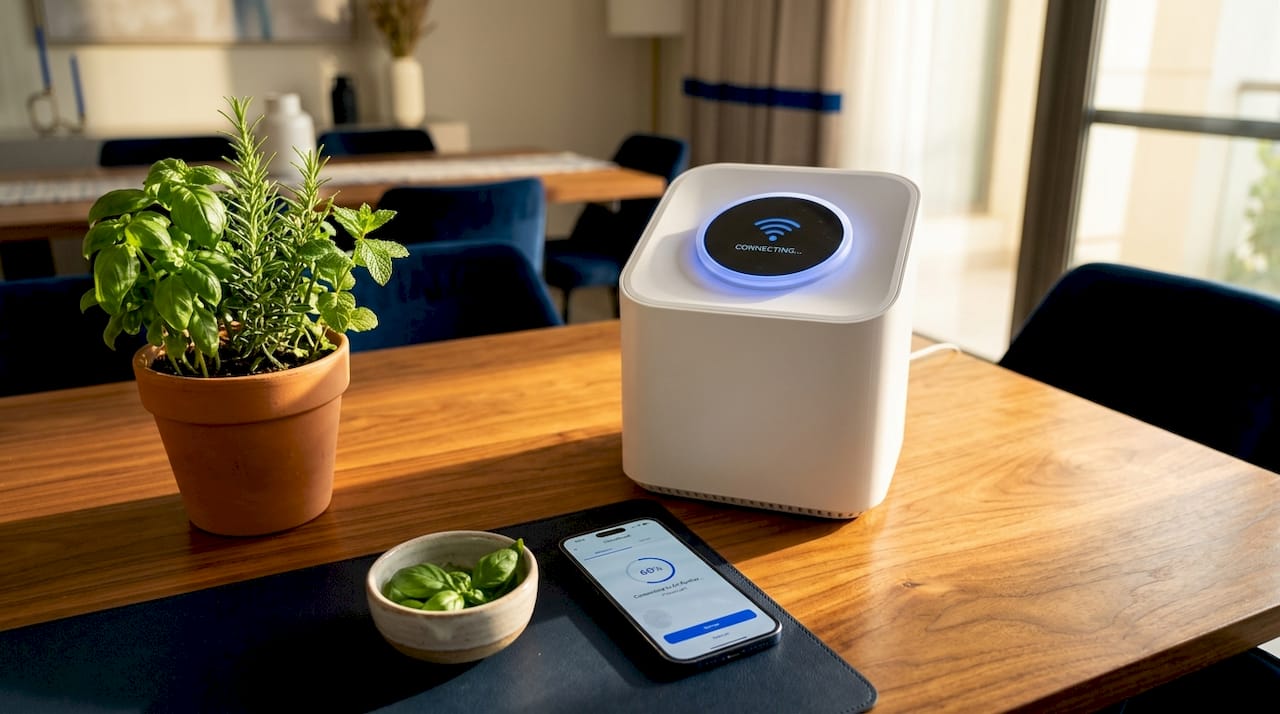
Here is a quick reference for the most popular brands and their connectivity options:
| Brand | Connectivity | Compatible platforms |
|---|---|---|
| Samsung | Wi-Fi | SmartThings, Alexa, Google Home |
| Philips Air+ | Wi-Fi (MQTT/cloud) | Home Assistant, Alexa |
| Xiaomi | Wi-Fi / Bluetooth | Mi Home, Google Home, Alexa |
| Blueair | Wi-Fi | Blueair app, Alexa, Google Home |
| Dyson | Wi-Fi / Bluetooth | Dyson app, Alexa, Google Home |
Key prerequisites before you begin:
- A 2.4 GHz Wi-Fi network (most smart purifiers do not support 5 GHz)
- The manufacturer’s app installed and an active account created
- A smart home hub or platform account (Samsung account for SmartThings, Google account for Google Home, etc.)
- Firmware updated to the latest version on both the purifier and your router
Step-by-step setup for major smart home platforms
Connecting a Samsung air purifier via SmartThings
Samsung air purifiers require Wi-Fi, an active internet connection, and a Samsung account to connect with the SmartThings app. Once connected, you gain access to fan speed control, on/off scheduling, filter status monitoring, and air quality readings from within a single interface.
- Download the SmartThings app and sign in with your Samsung account.
- Tap the “+” icon to add a new device, then select “Air Purifier” from the appliance list.
- Put your purifier into pairing mode (hold the Wi-Fi button until the indicator flashes).
- Follow the in-app prompts to connect the purifier to your 2.4 GHz network.
- Confirm the device appears in your SmartThings home dashboard.
SmartThings supports voice control in eight languages once the purifier is connected, making it straightforward to issue commands through Alexa or Google Assistant without opening the app.
Connecting Philips Air+ to Home Assistant
The Philips Air+ Home Assistant integration uses MQTT protocol via the Philips cloud, and it requires an OAuth authorisation code login flow for device control and status updates. This is more involved than a standard app pairing, but it gives you genuine local-style control with cloud-backed reliability.
- Install the Philips Air+ integration from the Home Assistant Community Store (HACS).
- Open a browser, navigate to the Philips OAuth login page, and sign in.
- After login, open your browser’s developer tools and monitor the network traffic to extract the authorisation code from the redirect URL. This is the step most users find challenging, but it is a one-time process.
- Paste the code into the Home Assistant integration configuration.
- Restart Home Assistant and confirm the purifier entity appears with fan speed, filter status, and air quality sensors.
Pro Tip: Token refresh is handled automatically by the integration, so you will not need to repeat the authorisation process unless you change your Philips account password or revoke access.
Connecting Xiaomi and other Wi-Fi purifiers
Xiaomi smart air purifiers connect via the Mi Home app and can be linked to Google Home or Amazon Alexa through their respective account linking flows. Open Mi Home, add the device, connect it to your 2.4 GHz network, then navigate to Google Home or Alexa and use “Link Account” to bring the device into your preferred ecosystem. The process takes under ten minutes for most models and gives you app-based remote control of fan speed, mode selection, and scheduling.
How to automate your purifier for smarter air quality control
Automation is where connecting an air purifier to your smart home system pays off most clearly. Rather than manually adjusting settings, you set rules that respond to actual air quality data.
Smart indoor air quality monitors can automate purifiers when air quality deteriorates, provided both devices are connected within the same ecosystem such as Apple Home or Google Home. The quality of that automation depends directly on sensor accuracy. A monitor that misreads PM2.5 by 20% will trigger your purifier at the wrong thresholds, wasting energy or, worse, leaving the air uncleaned when it matters.
Practical automation scenarios worth setting up:
- PM2.5 threshold trigger: Set your purifier to switch to high speed when a connected monitor detects PM2.5 above 35 µg/m³, the WHO 24-hour guideline. This is particularly relevant during sandstorm season in Riyadh.
- VOC response: Link a VOC sensor to trigger the purifier when cooking or cleaning products spike indoor chemical levels.
- Timed scheduling: Run the purifier at full speed for 30 minutes before you wake up, then drop to auto mode during the day.
- Filter replacement reminder: Use SmartThings or Home Assistant to send a notification when filter life drops below 10%.
Automation rule effectiveness depends on correct sensor data interpretation and testing of trigger thresholds. Start with conservative thresholds and adjust after a week of real-world data. Not all smart purifiers report the same parameters, so check your device’s actual sensor output before building complex rules.
Pro Tip: In Home Assistant, use the “History” panel to review how often your automation triggers over a week. If it fires more than 15 times a day, your threshold is set too low and you are likely reacting to normal fluctuation rather than genuine air quality events.
What to do when your purifier will not connect
Connection problems fall into a small number of repeatable categories. Identifying which one you are dealing with saves significant time.
Most connection failures trace back to three causes: the wrong Wi-Fi band, an expired or incorrect account token, or a firmware mismatch between the purifier and the app.
Common issues and their fixes:
- 5 GHz network rejection: If your router broadcasts a combined SSID, temporarily separate the 2.4 GHz and 5 GHz bands during setup. Most smart purifiers only support 2.4 GHz.
- App not recognising the device: Force-close the app, clear its cache, and retry. If the purifier still does not appear, perform a factory reset on the device and start the pairing process from scratch.
- OAuth token expiry (Philips Air+ / Home Assistant): The integration’s token refresh handles most cases automatically, but a password change or account security event will invalidate the token. Re-run the authorisation code flow to restore the connection.
- Firmware mismatch: Check the manufacturer’s app for a firmware update prompt. An outdated purifier firmware can prevent the app from discovering the device, even on a correct network.
- SmartThings device offline after setup: Confirm your Samsung account is active and that the purifier has not been removed from the app. The SmartThings connection is foundational to all remote features, so any account issue will take the device offline entirely.
If you have worked through all of the above and the device still will not connect, check the manufacturer’s community forum. Platform-specific bugs, particularly after app updates, are often documented there before official support acknowledges them.
Key takeaways
Connecting a smart air purifier to your home ecosystem delivers the most value when the setup is correct from the start, automation rules are based on real sensor data, and you know how to resolve the handful of issues that commonly arise.
| Point | Details |
|---|---|
| Confirm prerequisites first | Check Wi-Fi band, app version, and account credentials before starting any pairing process. |
| Match platform to purifier | Samsung pairs with SmartThings; Philips Air+ works best with Home Assistant via OAuth; Xiaomi links to Mi Home and voice assistants. |
| Automate with real sensor data | Use PM2.5 and VOC thresholds from a calibrated monitor to trigger purifier responses rather than fixed schedules alone. |
| Matter future-proofs your setup | Choosing a Matter-compatible purifier today avoids ecosystem lock-in as smart home standards converge. |
| Troubleshoot in order | Address Wi-Fi band, then account tokens, then firmware before assuming a hardware fault. |
Why smart integration changed how I think about indoor air
By Pauline
I have worked with smart home ecosystems long enough to have strong opinions about what actually improves daily life versus what just adds complexity. Air purifier integration sits firmly in the first category, but only when the setup is done properly.
The biggest shift I noticed was not convenience. It was awareness. Once a purifier is connected and reporting data to a dashboard, you start to see patterns you had no idea existed. In my own experience, PM2.5 levels in a kitchen spike significantly during cooking, even with ventilation running. Without the data, I would have assumed the purifier in the adjacent room was sufficient. It was not.
Where I see homeowners go wrong is in over-engineering the automation too early. They build complex multi-condition rules before they understand their sensor’s baseline behaviour. The result is a purifier that runs constantly or barely at all. Spend two weeks just observing the data before you write a single automation rule. The patterns will tell you exactly what thresholds make sense for your specific home.
The cloud dependency question is real. Platforms like SmartThings and the Philips Air+ integration both rely on cloud connectivity, which means a server outage or account issue can take your automation offline. For homeowners who want local control, Home Assistant with a locally processed integration is the more resilient choice, though it demands more technical effort upfront. For a broader view of smart home systems and how air quality fits within them, it is worth understanding the full ecosystem before committing to a platform.
My honest recommendation: start with the platform your other smart devices already use. Consistency across devices reduces troubleshooting complexity and makes automation rules far easier to manage over time.
— Pauline
Find the right smart air purifier for your home
If you are ready to put this guide into practice, Climasaudi stocks a curated range of Wi-Fi enabled air purifiers suited to Saudi homes, from compact units for apartments in Jeddah to high-capacity models for villas in Riyadh. The Blueair ComfortPure 3-in-1 T20i is a strong starting point for smart home integration, combining HEPA H13 filtration with app control and compatibility with Alexa and Google Home. Climasaudi also carries genuine replacement filters, HEPA accessories, and humidifiers, all with transparent SAR pricing and next-day delivery across KSA. Browse the full range of smart air purifiers and accessories and use the Air Match tool to find the right model for your room size and air quality needs.
FAQ
What is a smart air purifier?
A smart air purifier is a filtration device with Wi-Fi or protocol-based connectivity that allows remote control, scheduling, and air quality monitoring via a smartphone app or smart home platform such as Google Home or Samsung SmartThings.
Which smart home platforms work with air purifiers?
Samsung SmartThings, Google Home, Amazon Alexa, Apple HomeKit, and Home Assistant all support compatible air purifiers. The specific platform depends on your purifier’s brand and connectivity protocol, whether Wi-Fi, Zigbee, or Matter.
Do I need a hub to connect a Wi-Fi air purifier?
No. Wi-Fi enabled purifiers connect directly to your router and the manufacturer’s cloud without a hub, making them the simplest option for most homeowners. Zigbee-based devices do require a compatible hub.
Can I automate my air purifier based on air quality readings?
Yes. By pairing a smart air quality monitor with your purifier within the same ecosystem, you can set automation rules that trigger purifier responses based on PM2.5, VOC, or allergen levels detected in real time.
Why does my air purifier keep going offline in SmartThings?
The most common cause is an account or network issue. Confirm your Samsung account is active, your purifier is on the 2.4 GHz band, and the SmartThings app is updated. If the problem persists, remove the device from the app and re-add it from scratch.